
# How to connect to a server?
The question is simple, but not obvious to everyone. If you just bought a server but don't know how to connect, we'll fix that now.
Here's described where to find connection data in our personal dashboard. If you need help choosing or using a connection program - refer to the article "SSH Connection".
# Regular Linux server
For all servers without NAT option, a dedicated IPv4 address is provided - that's what we'll connect to. Connection data is located on the service page in the "Information" block. It will look approximately like this:
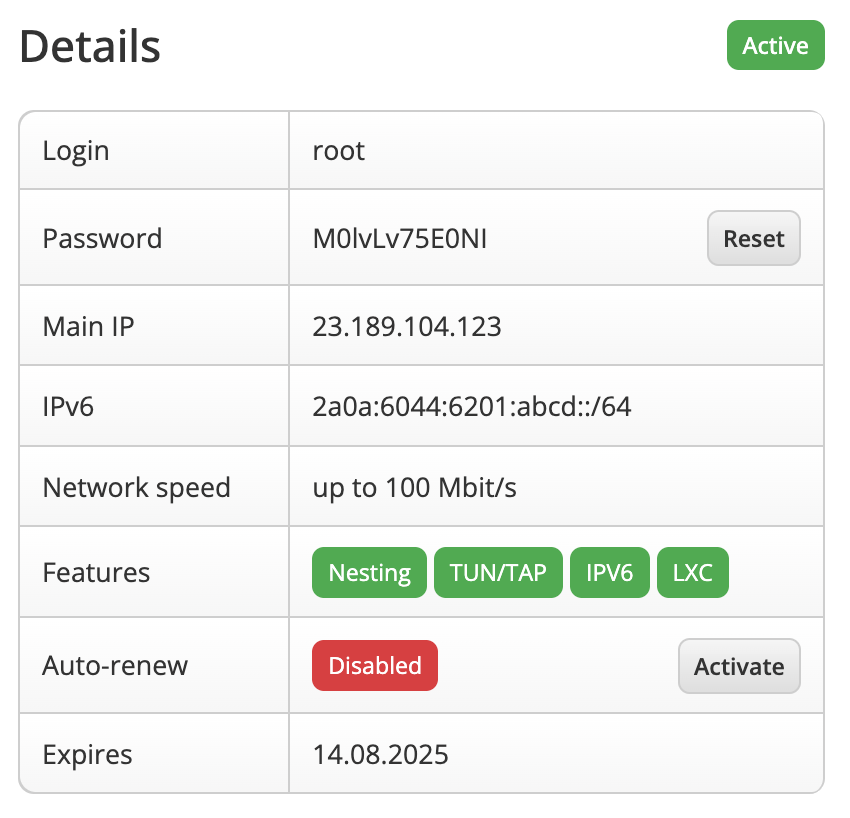
For Linux, this is SSH connection data. The purpose of the fields is as follows:
| Field | Purpose |
|---|---|
Main IP | Address for connecting to the server |
Login | Username with full rights |
Password | Password for the specified user |
If you haven't changed the SSH server port, the standard one is used - 22. The data in the screenshot above is provided only as an example.
This is enough to connect via any SSH client. And if you don't know how to use them, go to the article "SSH Connection".
# Linux server with NAT
If your server has the NAT option, it doesn't have a public IPv4 address, only an internal one. Below is described how to connect to the server using port forwarding.
Note
If your internet provider supports IPv6 and the server was ordered with such an option, then you can use it as the server's public address as if it were a server without NAT (following the instructions from the previous subsection).
Connection data is located on the service page in the "Information" and "Ports" blocks. Below is an example of such a virtual server page:
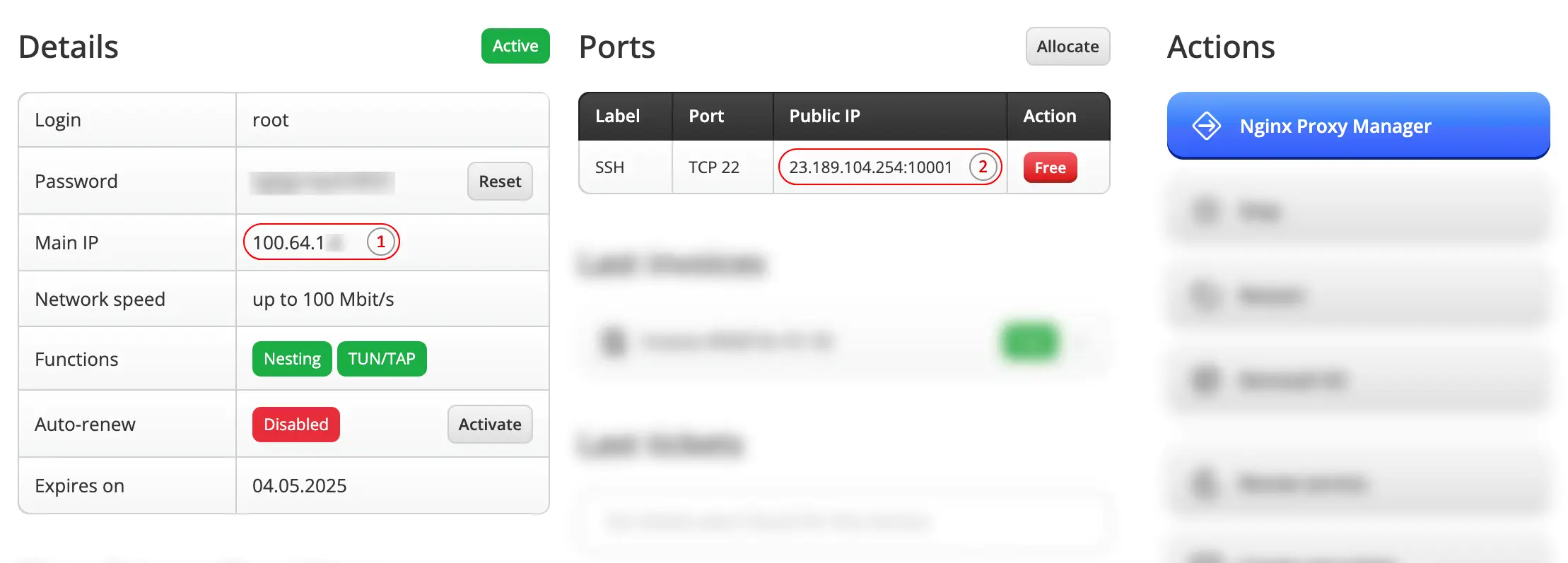
Immediately after ordering, a port forwarding[2] for SSH (TCP 22) is automatically created. NAT works so that you don't need to think about the complex network structure - you simply specify which port access is needed, and in return you get a public port and address accessible from the internet.
If you accidentally deleted all default forwardings, they can be easily restored by clicking the "Allocate" button in the "Ports" block header.
The label can be anything, for SSH specify internal port 22 and protocol TCP.
Port forwarding works as follows:

NAT is network address translation, that is, when a request comes to the common public address, our equipment checks for port forwarding, finds the record[2] and performs traffic redirection. So, for the example above, a request to 23.189.104.254:10001 (TCP) will arrive at port 22 of the server via the internal address[1].
Based on the example, for SSH connection you'll need the following:
| Field | Purpose |
|---|---|
Public IP | Address:Port for connecting to server |
Login | Username with full rights |
Password | Password for the specified user |
And here's how you can use them to connect via SSH utility:
ssh -p 10001 root@23.189.104.254
If you haven't changed the SSH server port, then the forwarding will work correctly. This is enough to connect via any SSH client. And if you don't know how to use them, go to the article "SSH Connection".
# Regular Windows server
For all servers without NAT option, a dedicated IPv4 address is provided - that's what we'll connect to. Connection data is located on the service page in the "Information" block. It will look approximately like this:
For Windows, this is RDP connection data. The purpose of the fields is as follows:
| Field | Purpose |
|---|---|
Main IP | Address for connecting to the server |
Login | Username with full rights |
Password | Password for the specified user |
If you haven't changed the RDP server port, the standard one is used - 3389. The data in the screenshot above is provided only as an example.
This is enough to connect via any RDP client. And if you don't know how to use them, go to the article "RDP Connection".